
- Get Inner Content Lite
- Get Inner Content Pro
- Install Inner Content
- Configure Inner Content plugin
- End result
- Inner Content Pro component
Get Inner Content Lite
- Go to Inner Content page and click “Download Inner Content”
Get Inner Content Pro
- Go to Inner Content page and click “Get Inner Content Pro” button to buy a subscription.
- Once you completed the process, you’ll get an email with the link to download the extension that includes the plugin and the component.
Install Inner Content
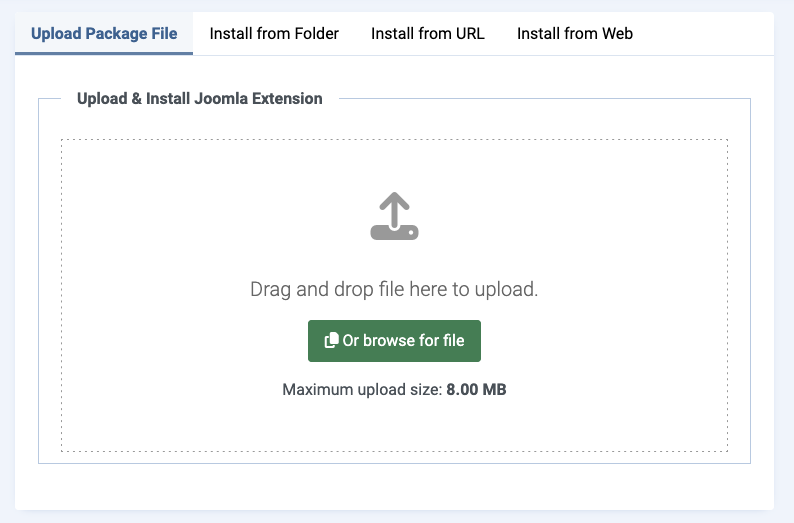
- Install the file you just downloaded as any regular extension from System > Extensions > Install extensions
- Browse the zip you downloaded from previous step and you are all set
Configure Inner Content plugin
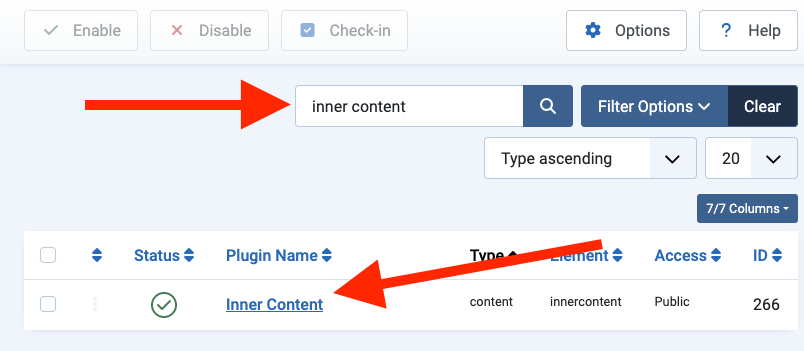
- Go to System > Plugins
- Search for “Inner Content”
Important: make sure the plugin is enabled.
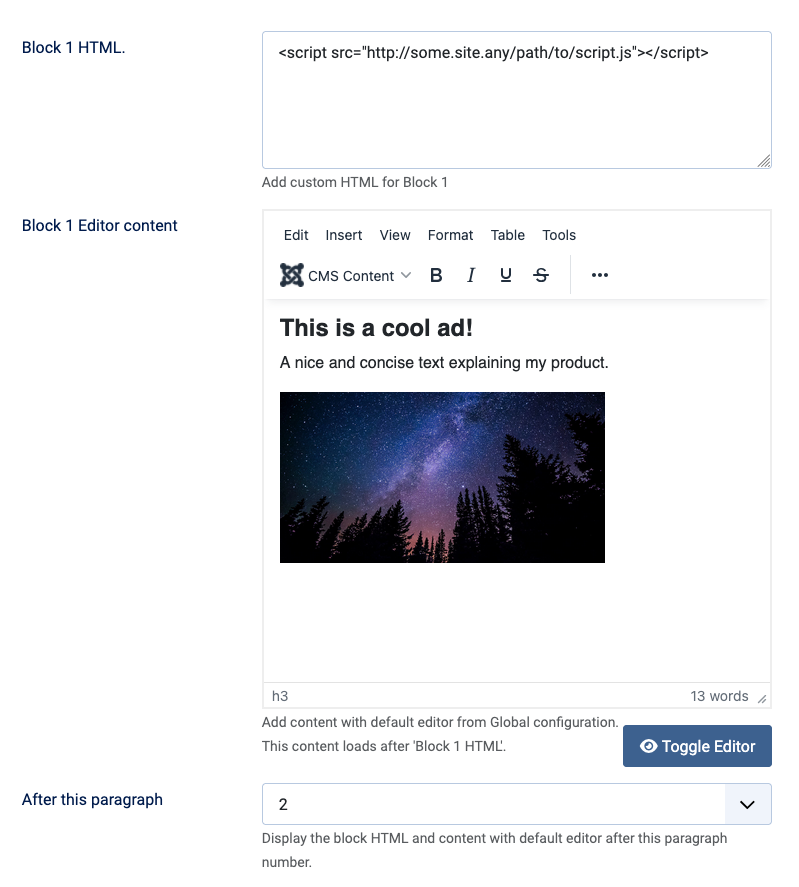
- Paste your custom content snippets in each block and configure the location based on the paragraph number by using “After this paragraph” field.
- Save changes
End result
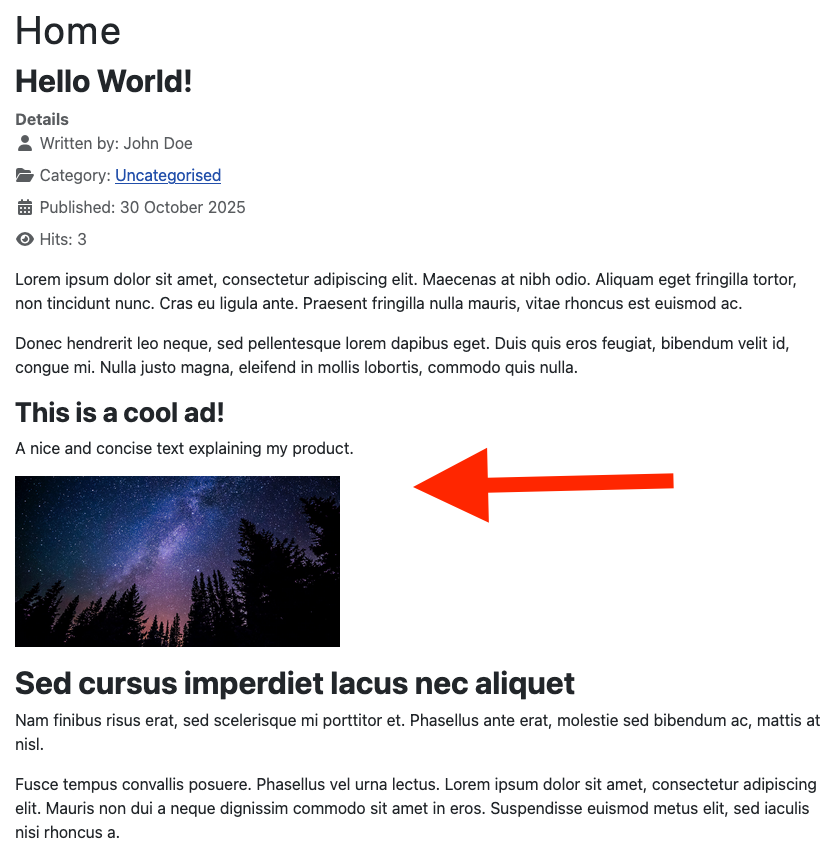
Preview your article to see the custom content you added between paragraphs:
Inner Content Pro component
Pro version comes with a component to insert unlimited blocks into your articles.
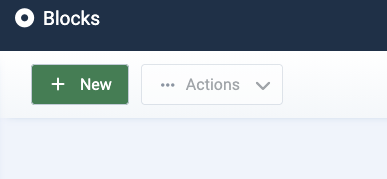
- Go to Components > Inner Content Pro > Blocks
- Click “Add new”
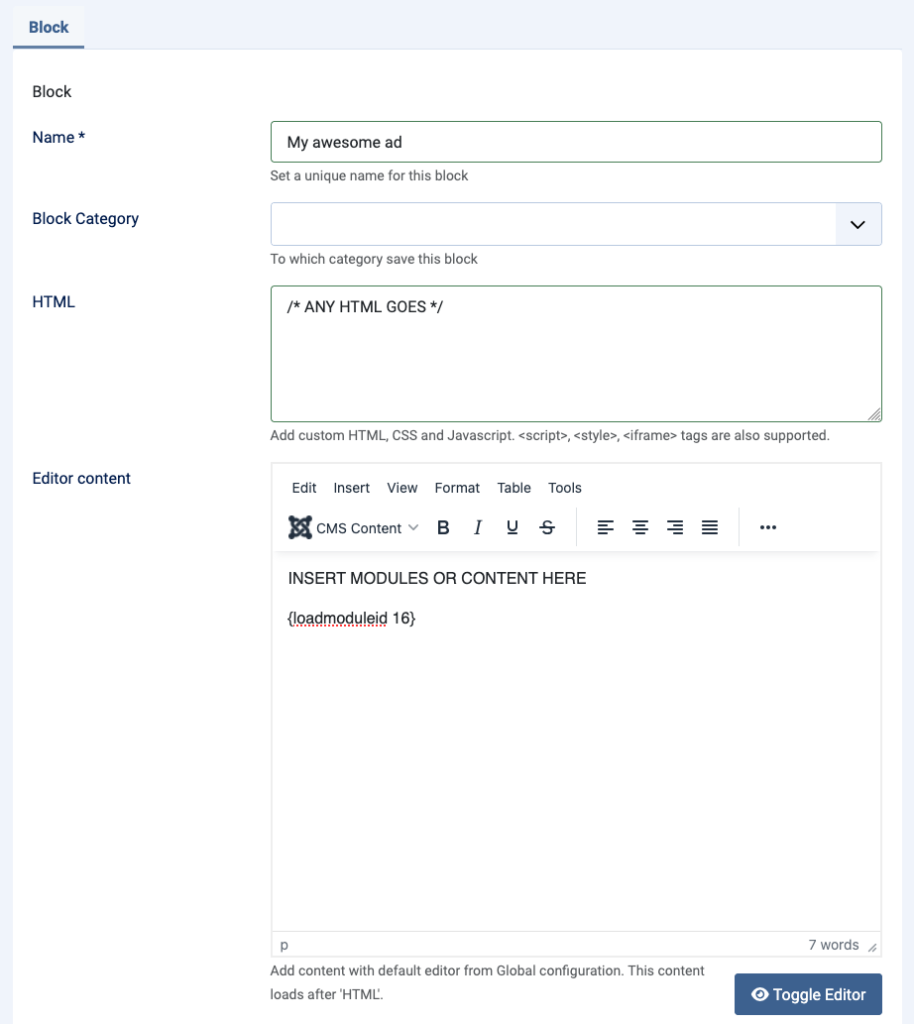
- Name. Give a name to your custom block.
- Block category (optional). To which category save this block. Categories are managed through Components > Inner Content Pro > Categories
- HTML. Add custom HTML, CSS and Javascript.
- Editor content. Add content with default editor from Global configuration. This content loads after ‘HTML’. uses your default editor. Here you can include formatted content, links, images, modules and more.
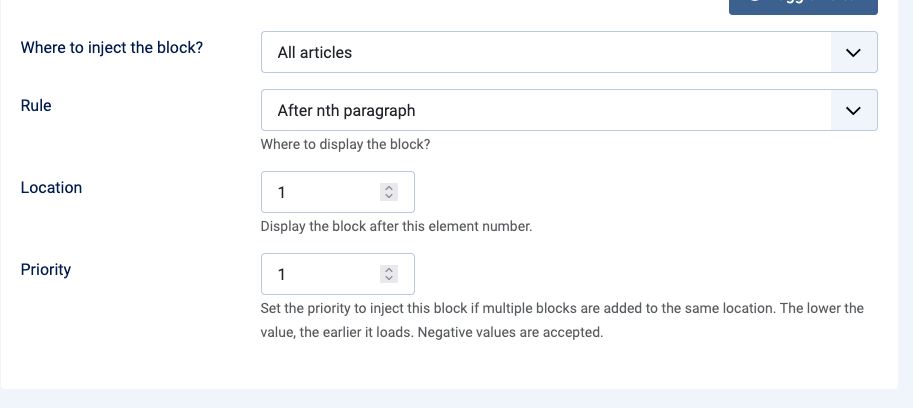
- Where to inject the block? Choose between:
- All articles
- Only articles from selected categories – when selected it will open a filter below
- All articles except from the selected categories – when selected it will open a filter below
- Rule. Choose between:
- After nth paragraph – your content will be inserted after an nth paragraph
- After nth h1 tag – your content will be inserted after an nth h1 tag
- After nth h2 tag – your content will be inserted after an nth h2 tag
- After nth h3 tag – your content will be inserted after an nth h3 tag
- After nth h4 tag – your content will be inserted after an nth h4 tag
- After nth h5 tag – your content will be inserted after an nth h5 tag
- After nth h6 tag – your content will be inserted after an nth h6 tag
- Before the article – your content will be inserted before the article body
- After the article – your content will be inserted after the article body
- Location. When selecting After nth paragraph or After nth h1 – h6, insert the block after this element number.
- Priority. Set the priority to inject this block if multiple blocks are added to the same location. The lower the value, the earlier it loads. Negative values are accepted.
Result in frontend is similar to the Inner Content plugin, however you have more control when using the component.