
Easeful Themes for ACF keeps every theme on one screen, ACF → Themes, where you can change a theme for all the field groups that use it at once, copy it as a starting point for a new one, or remove it.
The list shows each theme with:
- its name and its key — the short name you use to pick the theme in a shortcode, such as
theme="minimal"; - a few of its colors, as swatches;
- whether it’s ‘Built-in’ or ‘Custom’ (one of yours);
- how many field groups use it, under ‘Used by’.
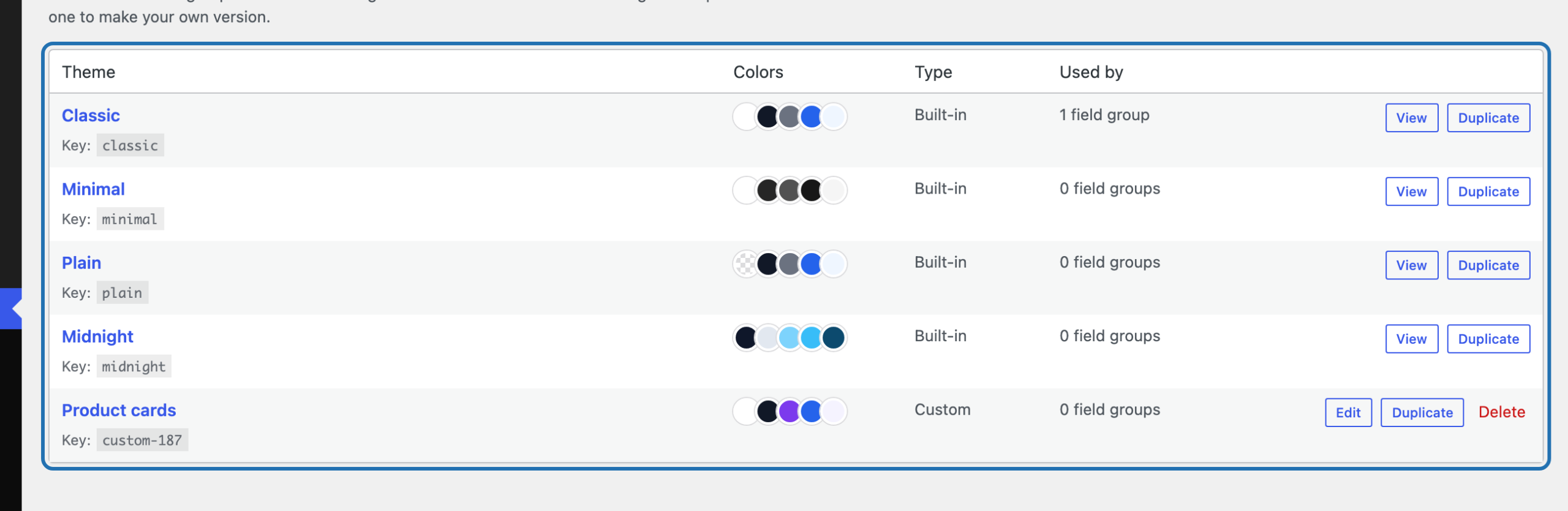
The four built-in themes — ‘Classic’, ‘Minimal’, ‘Plain’ and ‘Midnight’ — can be viewed and duplicated but not changed or deleted, so they’re always there to start from. Your own themes can be edited and deleted.
How to Edit a Theme #
-
Go to ACF → Themes and click ‘Edit’ next to one of your own themes, or click its name.

-
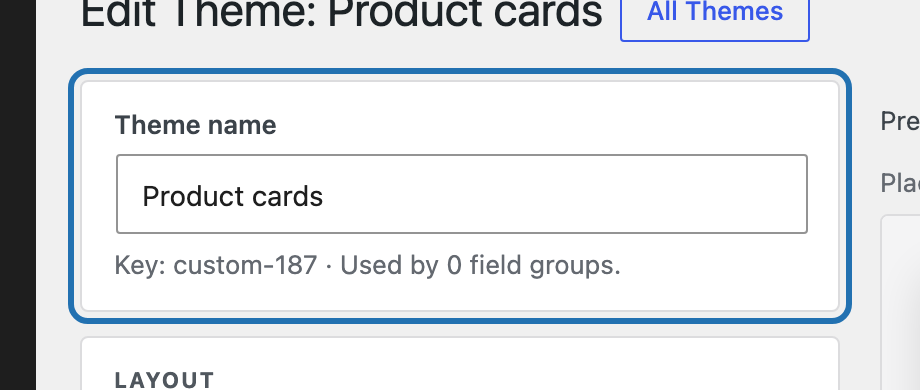
Change its name or any of its settings. Under the name, the editor reminds you of the theme’s key and how many field groups use it, since every one of them changes along with it. The preview on the right shows the result as you go; choose one of those field groups under ‘Preview with’ to see it on real fields.
-
Click ‘Save Theme’.
Every field group using the theme now shows the change on the front end. Renaming a theme never breaks anything: field groups and shortcodes refer to it by its key, which stays the same.
How to Duplicate a Theme #
Duplicating makes a new theme of your own with the same settings, so you can try a variation without touching the original, or adjust a built-in theme.
-
Click ‘Duplicate’ next to the theme in the list. For a built-in theme, you can also click ‘View’ and then ‘Duplicate this theme’.

-
The copy opens straight away, named after the original with ‘(copy)’ at the end. Rename it, adjust it and click ‘Save Theme’.
The copy isn’t used by any field group yet; choose it in a field group’s Design tab, under ‘Theme’ in the ‘Display’ section, to put it to work.
How to Delete a Theme #
-
Click ‘Delete’ next to one of your own themes in the list, and confirm.

The theme is removed for good. Any field group that used it switches to ‘Classic’ rather than losing its design, and keeps its field order, widths and display settings; pick another theme in its Design tab if ‘Classic’ isn’t what you want. A shortcode that names the deleted theme’s key falls back to ‘Classic’ in the same way.


