
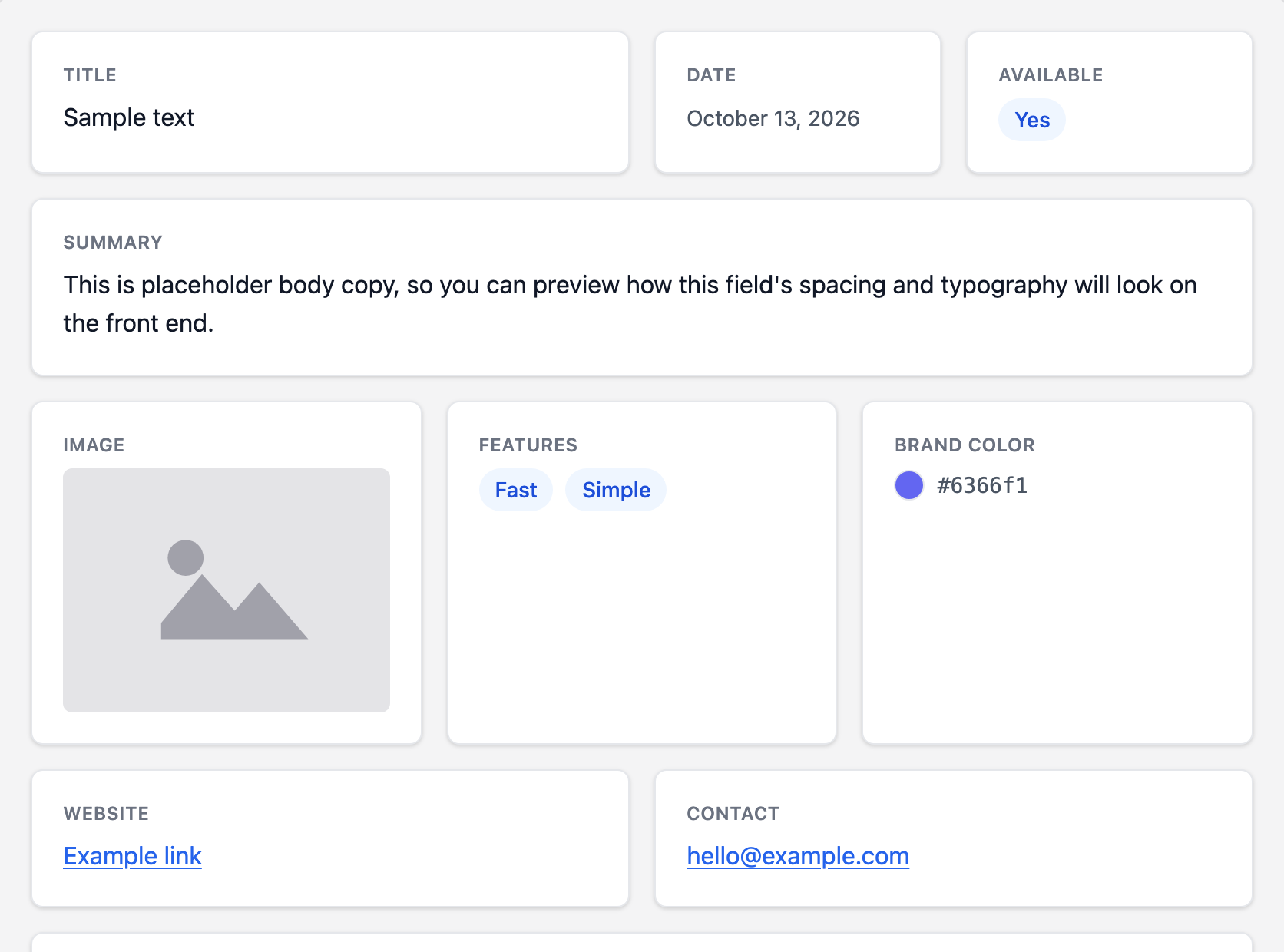
Easeful Themes for ACF lets you choose how much of a row each custom field takes up on the front end, so short fields like a date or a price can sit side by side, and lets you leave a field out of the front end entirely without touching it in Advanced Custom Fields.
Each field has one of four widths:
- ‘Full’ — the whole row, on its own.
- ‘Half’ — half a row, so two fit side by side.
- ‘Third’ — a third of a row, so three fit side by side.
- ‘Quarter’ — a quarter of a row, so four fit side by side.
Fields fill each row from left to right in the order you set, and a field that doesn’t fit in what’s left of a row starts the next one. A ‘Half’ field followed by two ‘Quarter’ fields shares one row, for example, while a ‘Half’ followed by a ‘Full’ leaves the rest of the first row empty. On phones and other narrow screens, every field takes the full width, one under the other.
How to Set a Field’s Width #
-
Edit the field group, scroll down to its Settings box and switch to the ‘Design’ tab.

-
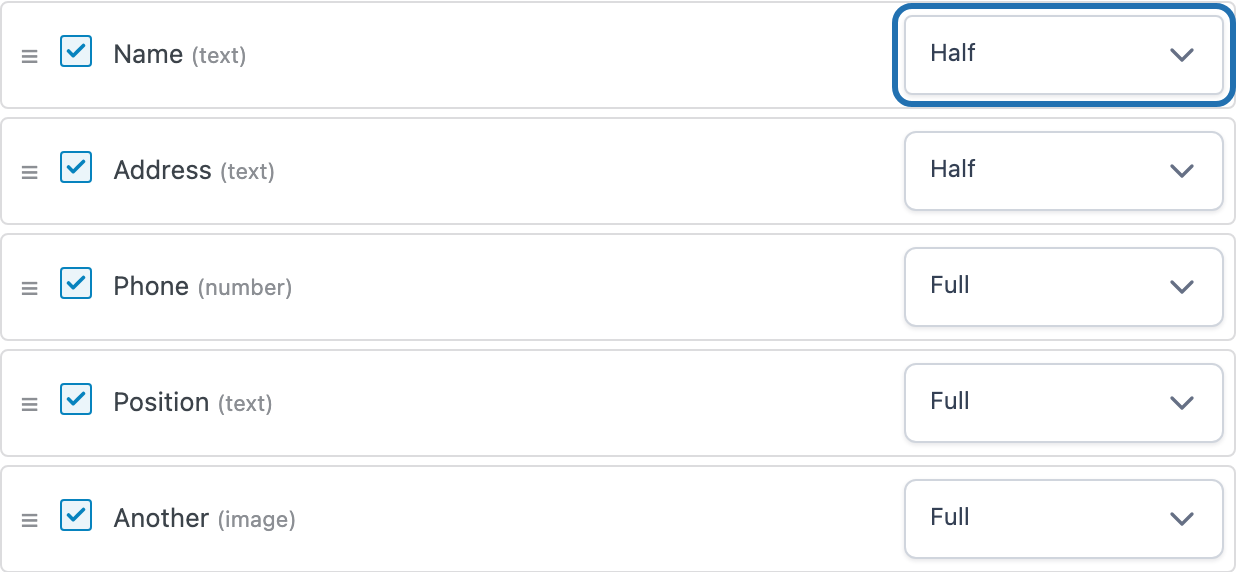
In the list of fields on the left, use the dropdown at the right of a field’s row to choose ‘Full’, ‘Half’, ‘Third’ or ‘Quarter’. Do the same for the fields that should share its row, keeping them next to each other in the list — drag a field by its handle to move it.
How to Hide a Field on the Front End #
Hiding a field only removes it from what Easeful Themes for ACF renders. The field stays in the field group, still appears on the post edit screen, and keeps its value, so you can bring it back at any time.
-
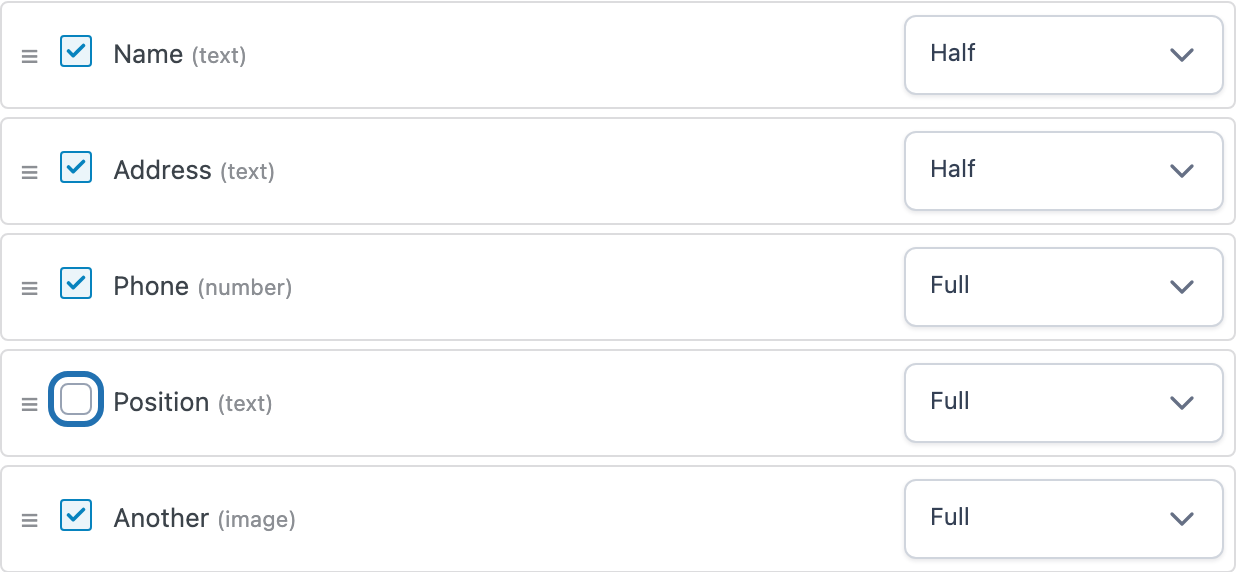
In the same list, untick the checkbox at the left of the field’s row.
-
Click ‘Save Changes’ at the top of the screen to keep both the widths and the hidden fields.
Open a post the field group applies to and the fields now sit in their new rows, without the hidden ones. A field with no value on a post is left out automatically as well, so you don’t need to hide a field just because some posts leave it empty. Fields you add to the group later in ACF join the end of the list at ‘Full’ width.


