
Every Easeful Themes for ACF theme is made of the same settings, grouped into six sections in the theme editor, and this article explains what each one changes on the front end.
You find these settings when you edit one of your own themes under ACF → Themes, or create a new one with ‘Add New Theme’. The built-in themes show the same settings read-only; duplicate one to change it. The preview on the right of the editor follows every change as you make it.
A theme only styles the fields it renders. Your site’s WordPress theme still decides the page around them, including the font, and when you place the post content among the fields in its ‘Plain’ style, that content keeps your site’s own styling too.
How to Adjust the Layout #
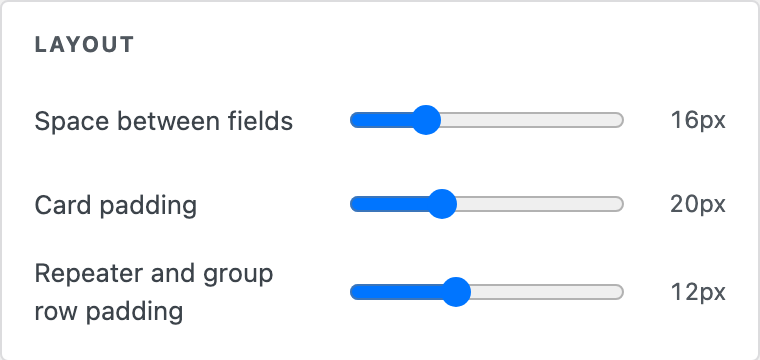
- ‘Space between fields’ — the gap between neighboring fields, both across a row and between rows.
- ‘Card padding’ — the space between a field’s card edge and its label and value. Set it to 0 for fields with no visible card.
- ‘Repeater and group row padding’ — the space inside each row of a repeater or flexible content field.
How to Style the Cards #
Each field sits in a card, and these settings shape it.
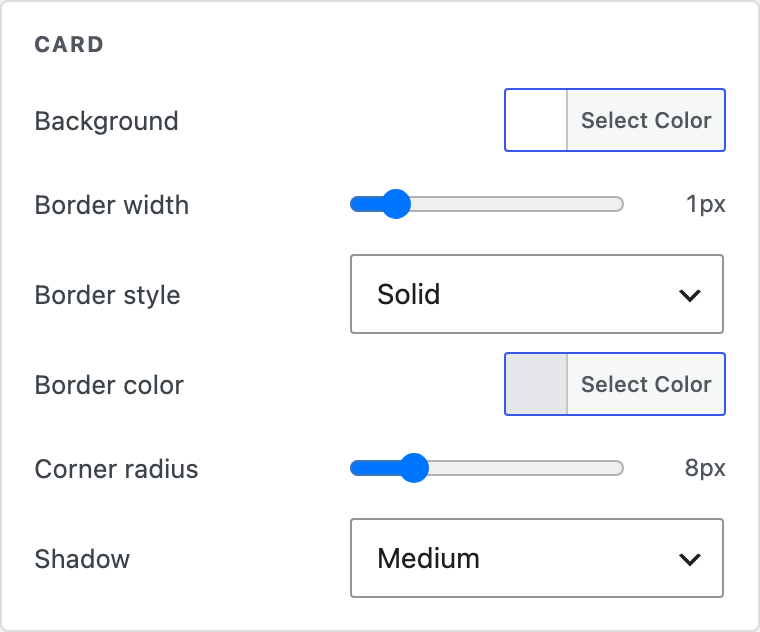
- ‘Background’ — the card’s fill color. Make it see-through to let the page show through.
- ‘Border width’, ‘Border style’ and ‘Border color’ — the line around the card: ‘Solid’, ‘Dashed’ or ‘Dotted’. A width of 0 removes it.
- ‘Corner radius’ — how rounded the card’s corners are, from square at 0.
- ‘Shadow’ — ‘None’, ‘Small’, ‘Medium’ or ‘Large’, or ‘Custom’ to design your own.
When you choose ‘Custom’, six more settings appear under ‘Shadow’:
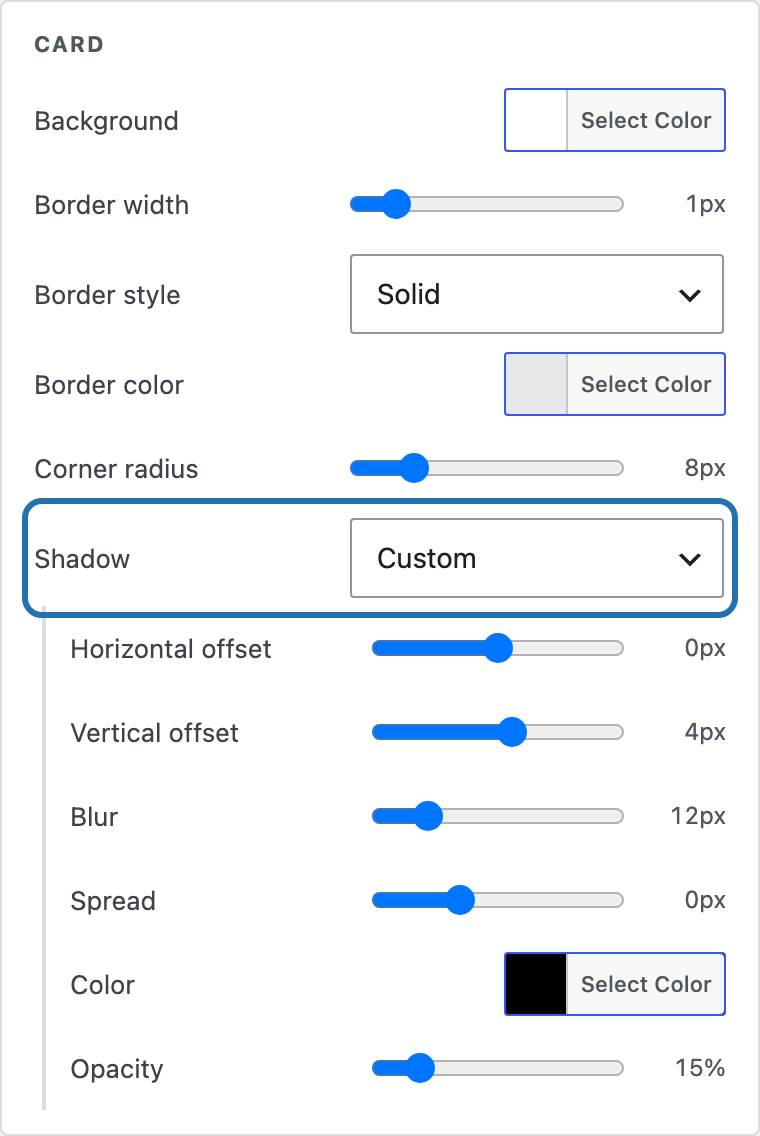
- ‘Horizontal offset’ and ‘Vertical offset’ — how far the shadow falls to the right (or left, below 0) and down (or up, below 0).
- ‘Blur’ — how soft the shadow’s edge is; 0 gives a hard edge.
- ‘Spread’ — grows the shadow beyond the card, or shrinks it with a value below 0.
- ‘Color’ and ‘Opacity’ — the shadow’s color and how strong it is, from invisible at 0% to solid at 100%.
How to Set the Typography #
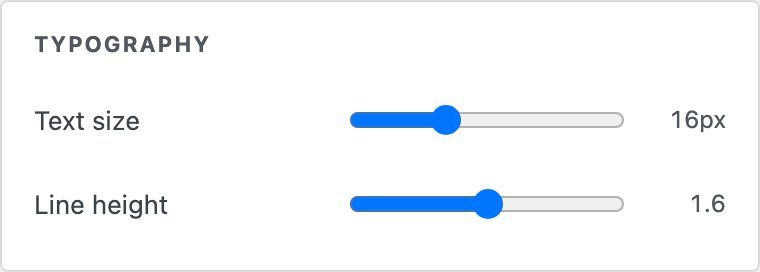
- ‘Text size’ — the size of the field values.
- ‘Line height’ — the space between lines of text, as a multiple of the text size.
How to Style the Labels #
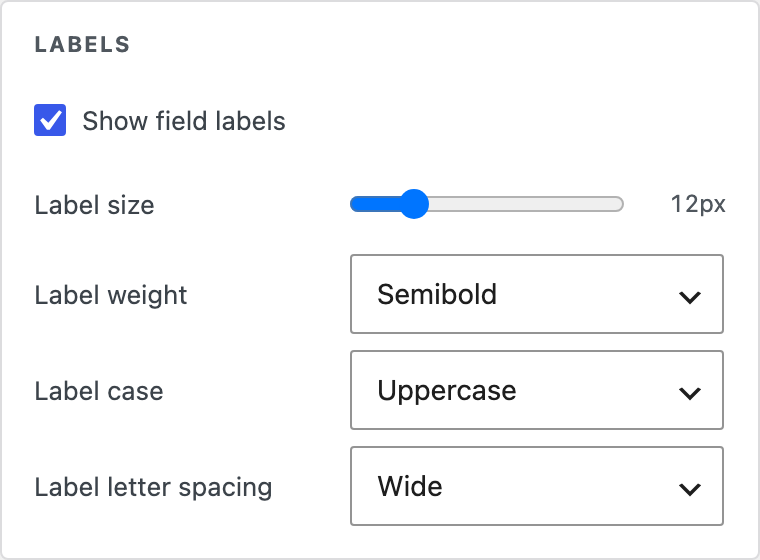
- ‘Show field labels’ — untick it to show only the values, with no field names above them.
- ‘Label size’ and ‘Label weight’ — how large and how bold the labels are, from ‘Regular’ to ‘Bold’.
- ‘Label case’ — ‘As written’ keeps your field labels as you typed them in ACF; ‘Uppercase’ capitalizes them.
- ‘Label letter spacing’ — ‘Normal’, ‘Wide’, ‘Wider’ or ‘Widest’. Wider spacing suits uppercase labels.
How to Choose the Colors #
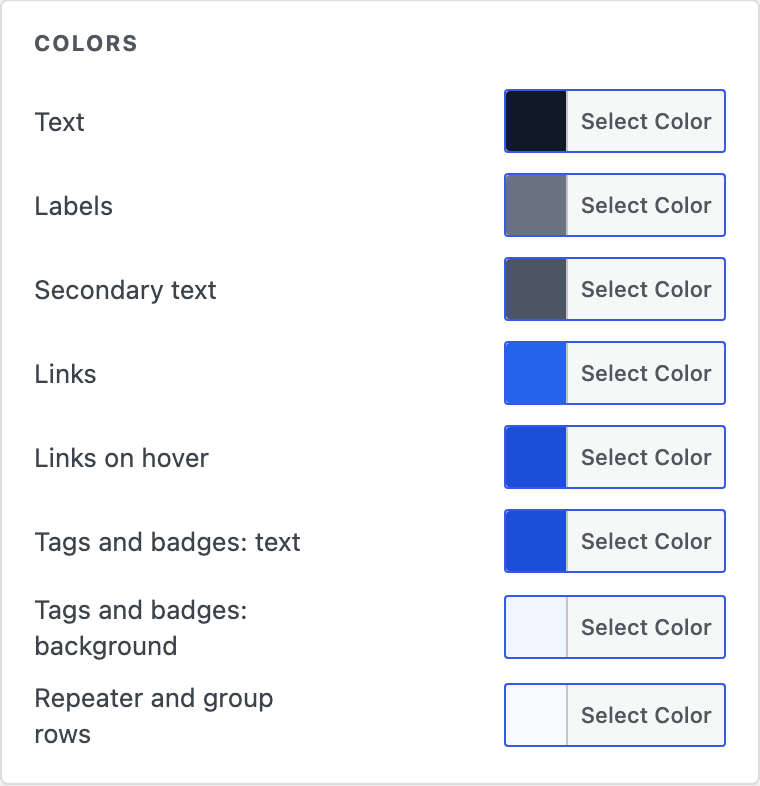
- ‘Text’ — the field values.
- ‘Labels’ — the field labels.
- ‘Secondary text’ — smaller supporting text, such as dates, color codes and the ‘No’ of a true/false field.
- ‘Links’ and ‘Links on hover’ — links in the field values, before and while the pointer is over them.
- ‘Tags and badges: text’ and ‘Tags and badges: background’ — the rounded tags used for choices, terms and related posts, and the ‘Yes’ of a true/false field.
- ‘Repeater and group rows’ — the background behind each row of a repeater or flexible content field, also used behind the ‘No’ of a true/false field.
Every color’s picker has a transparency strip on its right, next to the color strip. Drag it down to let whatever is behind the color show through: at the bottom the color is gone entirely, at the top it’s solid. A see-through color is shown as rgba(…) in the picker’s text box, for example rgba(255, 255, 255, 0.35) for white at 35%. The shadow’s color is the exception, since a custom shadow has its own ‘Opacity’ setting.
How to Adjust Images #
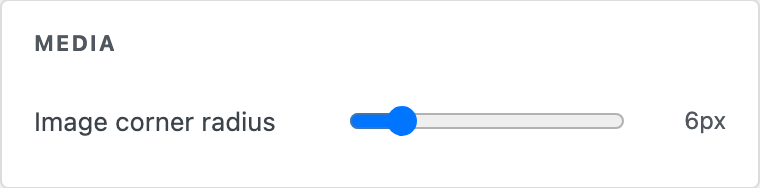
- ‘Image corner radius’ — how rounded the corners of images, gallery thumbnails and embeds are.
Click ‘Save Theme’ (‘Create Theme’ for a new one) when you’re done, at the top right or below the settings. Every field group using the theme picks up the change straight away.


