
Easeful Themes for ACF can place a post’s own content at any spot among its custom fields, so a field group no longer has to sit entirely above or entirely below what the author wrote — a summary field can come first, the article next, and the details after it.
This works with automatic display, where Easeful Themes for ACF adds the group to every post matching the field group’s location rules. Instead of inserting the whole group before or after the content, it takes the content into the group and renders it in a slot you position like any field. The content is output once, in that slot, and nothing about the post itself changes.
How to Display the Post Content Between Your Custom Fields #
-
Edit the field group, scroll down to its Settings box and switch to the ‘Design’ tab.

-
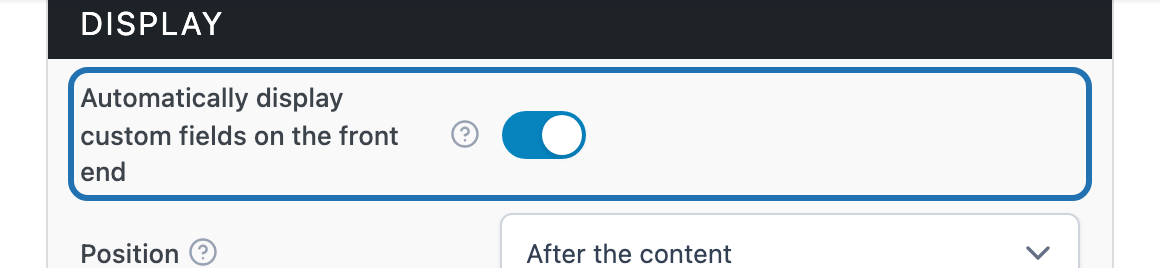
In the ‘Display’ section on the right, make sure ‘Automatically display custom fields on the front end’ is turned on. The content can only be placed among the fields when Easeful Themes for ACF is the one adding the group to the page; with the shortcode or template tag, the group renders on its own wherever you put it.
-
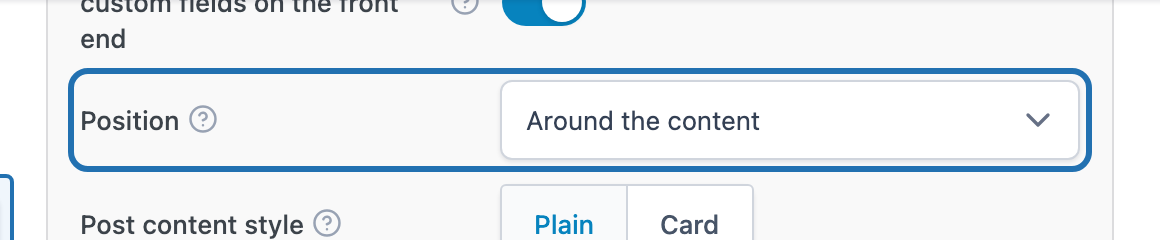
Choose ‘Around the content’ from the ‘Position’ list. The other two options, ‘Before the content’ and ‘After the content’, keep the whole group on one side of the content as before.
-
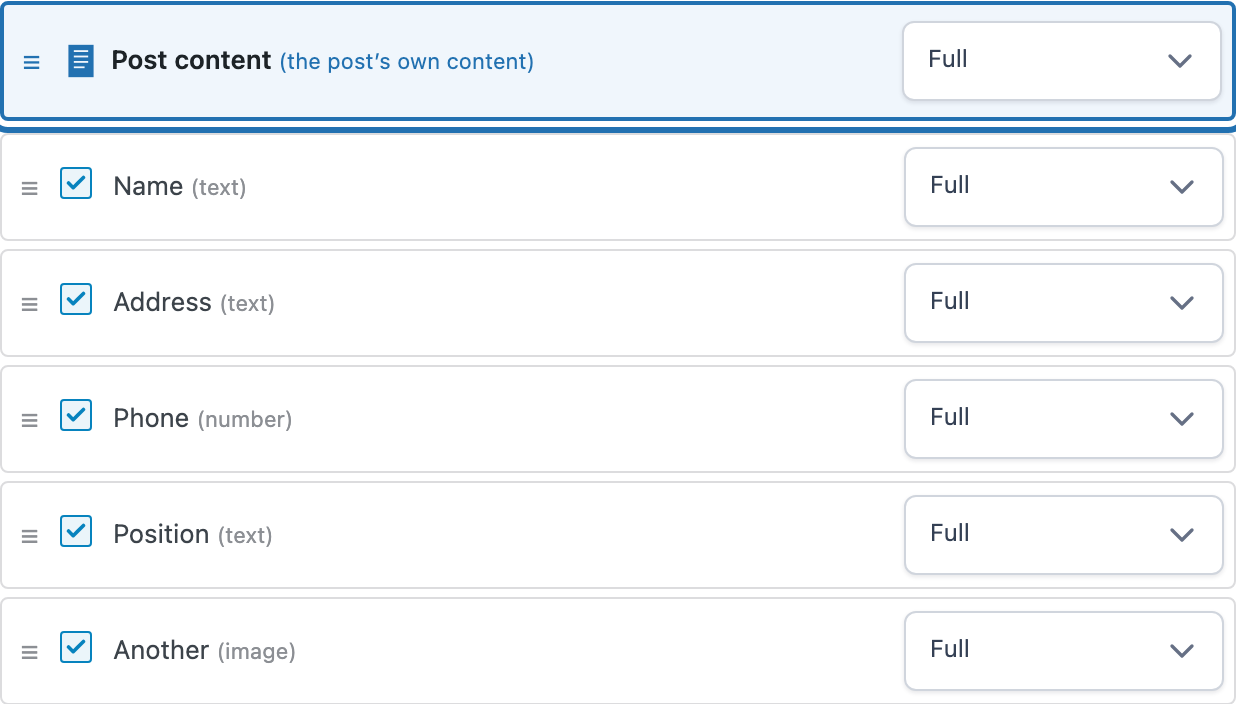
A ‘Post content’ row now appears in the ‘Custom fields’ list on the left, highlighted so it stands out from the real fields. Drag it by its handle to wherever the content should sit — first, last, or anywhere in between — and use its dropdown to set how much of the row it takes up, just like a field. It starts at the top, which puts every field after the content.
-
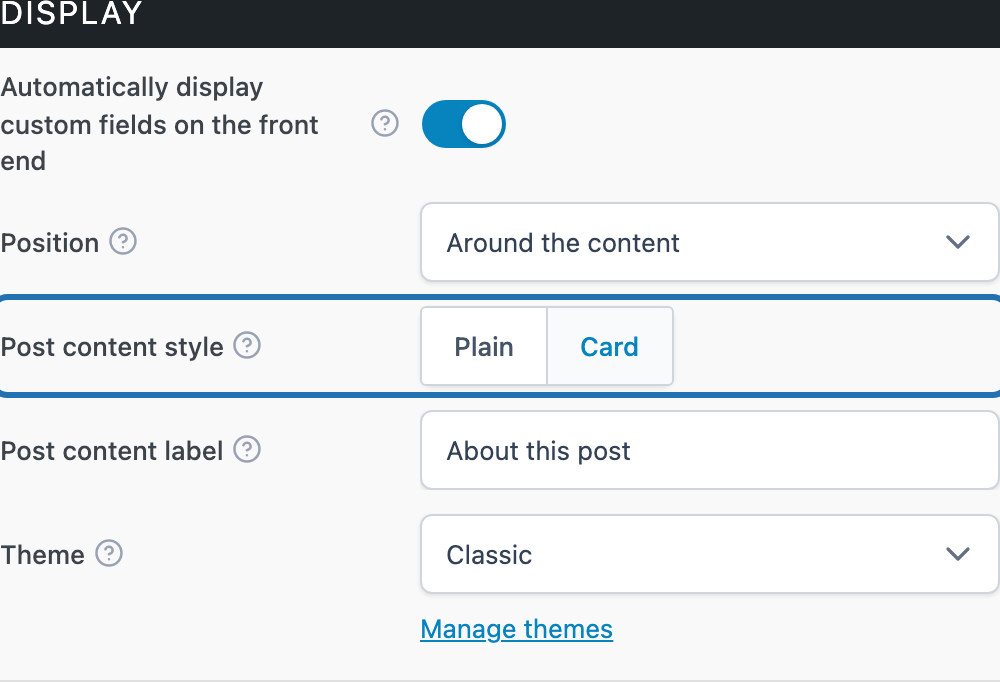
Back in ‘Display’, pick a ‘Post content style’. ‘Plain’ leaves the content exactly as your site’s WordPress theme styles it; ‘Card’ wraps it in the same card as the surrounding fields so it reads as part of the group. Either way you can add a ‘Post content label’ — a short heading shown above the content in the same style as the field labels, and hidden along with them if the group’s theme has ‘Show field labels’ turned off.
-
Click ‘Save Changes’ at the top of the screen.
Every post matching the group’s location rules now shows its content in that slot, with the fields around it — open one to check the layout. Only one field group can hold the content on a given post: if several matching groups are set to ‘Around the content’, the first one takes it and the others fall back to ‘After the content’.


